The ConvertStringToJson activity can be used to convert an input string and return a JSON (JavaScript Object Notation) object.
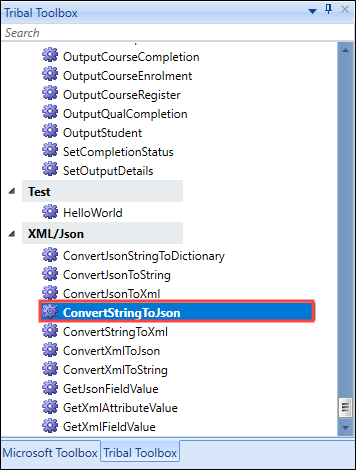
The ConvertStringToJson activity is located in the XML/Json section of the Tribal Toolbox.
This activity contains the following relevant properties.
| Section | This field | Holds this information... |
|---|---|---|
| Inputs | InputString | The input string to convert to a JSON object. |
| Misc | DisplayName |
The title of the activity. Important.The DisplayName property is set to ConvertStringToJson by default.
|
| Outputs | OutputObject | The converted object. |
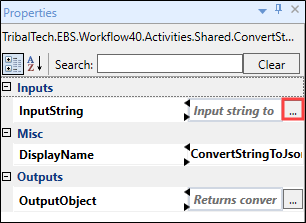
Selecting the ellipsis button adjacent to the relevant field opens the Expression Editor, where you can enter the relevant code in the Visual Basic (VB) format.
 Use the ConvertStringToJson activity
To use the ConvertStringToJson activity in a workflow:
-
Select the Tribal Toolbox tab in the XML/Json section of Workflow Builder .
-
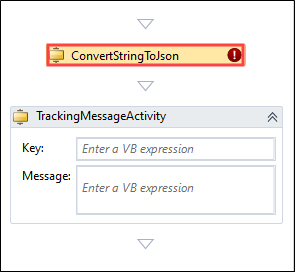
Drag and drop the ConvertStringToJson activity into the desired location within the Sequence panel. In this example, ConvertStringToJson is followed by TrackingMessageActivity so that the output can be viewed.
-
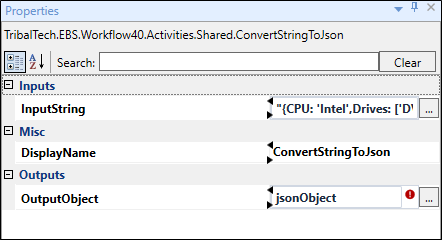
Enter values for the InputString (for example: "{CPU: 'Intel',Drives: ['DVD read/writer','500 gigabyte hard drive'], IsActive:true}") and OutputObject (for example: jsonObject) fields and add a name for the activity to the DisplayName field. Select the ellipsis button adjacent to the relevant fields to open the Expression Editor.
 Important.An exclamation mark symbol indicates a warning. Refer to Use the Warnings Panel for further information.
 -
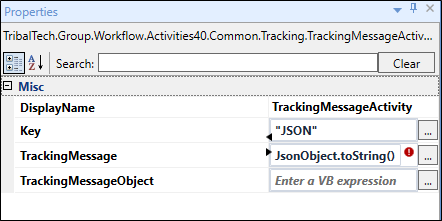
Enter values for TrackingMessageActivity fields, Key (for example: "JSON") and TrackingMessage (for example: JsonObject.toString()) fields and add a name for the activity to the DisplayName field.
-
Select Save .
You can now trigger the workflow and use the User Tracking tab to ensure that the input string is converted to a JSON object.